Shutdown
Cameras
The camera controller does not automatically shut the cameras down, so please be kind and shut them down manually 😇
On the Camera Controller:
Press the
SYSTEMbutton to show the system page (see Fig. 17)Turn the
F1knob shown in Fig. 18 until the text under “CAM POWER” says “ALL OFF” (in yellow)Press down ⬇️ on the F1 knob (it’s a button too)
The text should go back to “NON” (whatever that means) and no longer be yellow
The indicators for the cameras (below the screen and its knobs) should go from green to amber (aka “orange”) as shown in Fig. 19
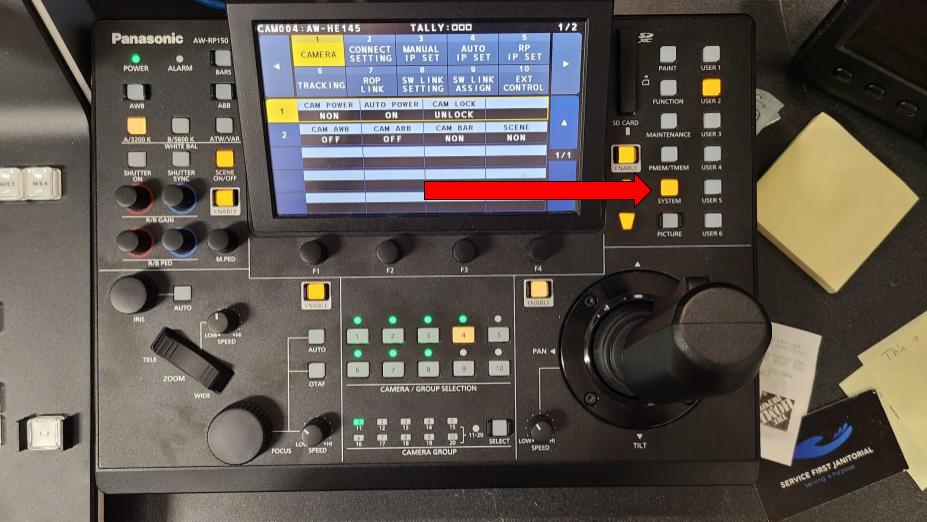
Fig. 17 System Button
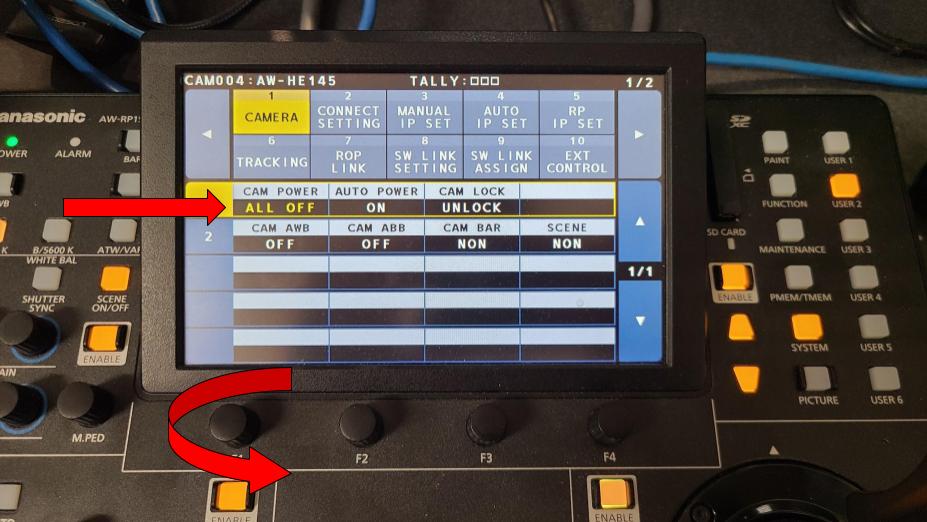
Fig. 18 F1 Knob
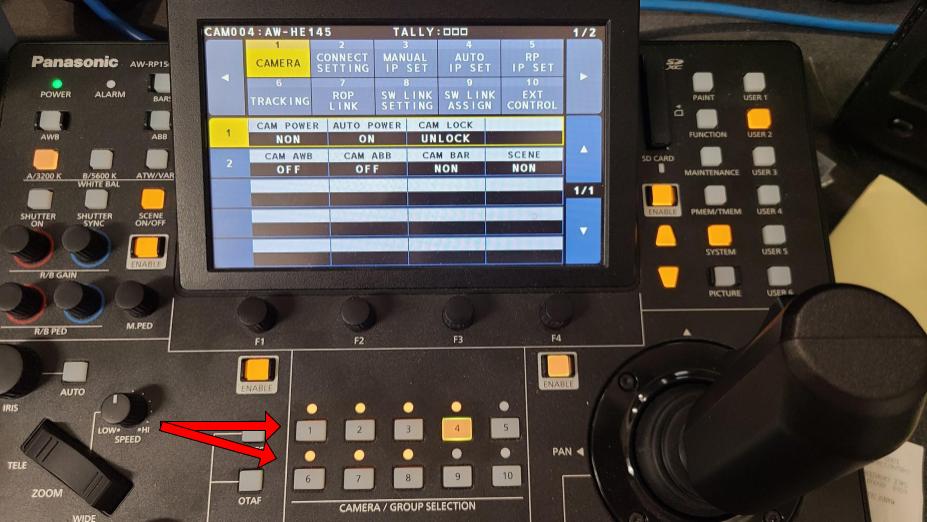
Fig. 19 Final Result
🫡 Thank you for that! 🏆
Controllers
Turn off the Camera Controller using the switch on the back left side (after shutting down the cameras, of course). See Fig. 3 for details.
Slightly unplug the network connector on the back of the Switcher Controller (since there’s no power switch 😒).
This should be the one on the right (see Fig. 2 for details).
If you don’t mind, please also turn off the video monitors since they won’t do it automatically.
Rack
Caution
🚨 Before doing this, make sure all recordings / streams have been stopped! 🚨
All steps from the Recorders / Stream section should have been followed at this point.
The HyperDecks in the rack should not have anything lit up except the stop ⏹️ buttons. Data loss is likely if they’re still writing to their SD cards!
In the Wall Rack, turn off the switch on the Power Conditioner (see Fig. 1)
🎊 That’s it, congratulations! You can finally go home 😎