After the Meeting
Audio
In the Mic Controls page of the Touch Panel,
make sure all of the audio sources are muted (Mute buttons should be red).
Recorders / Stream
In the CivicClerk Event Page:
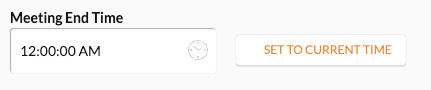
Set the “Meeting End Time” to the current time
Click the
 button
You should see a popup saying that the video is being processed. You can close the page after this.
In the Wall Rack, find the two HyperDecks and the Live Encoder:
Press the
Stop⏹️ button on both HyperDecksOn the Live Encoder, press the blue streaming button to stop the stream. It should now be white.
Routing
The main video feed needs to be switched back to the Off Air feed. This is so we always have a pretty picture going to our cable channel.
You can choose between the Web Browser or Manual methods below to do this.
Note
Before doing this, make sure all recordings and streams have been stopped
Web Browser Method
Access the UCI interface by following the steps shown in Video Routing Section.
Once the page loads, you should see a screen similar to the one shown in Fig. 7.
In the “Program Video Source” section, you’ll see two buttons labeled “Signage” and “Video Switcher”.
Select “Signage” to go into Off Air mode.
The screen should now look like Fig. 16. If the red indicator below the button does not light up, something likely didn’t work correctly. You’ll need to follow the steps in the Manual Method section.
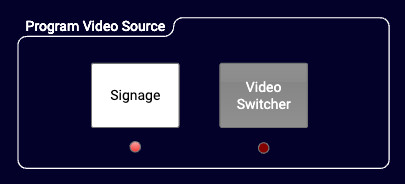
Fig. 16 UCI Signage Selected
Manual Method
On the VideoHub:
Press
DESTthen3
Both
DESTand3should be litThe labels on the display should say “ATEM PGM” on the bottom-left and “PGM” on the bottom-right
Press
SRCthen9
Both
SRCand9should be lit and theCLEARandTAKEbuttons should be flashingThe labels on the display should say “Brightsign” (bottom-left) and “PGM” (bottom-right)
Press
TAKE
The buttons should all be off and the labels should still say “Brightsign” and “PGM”